
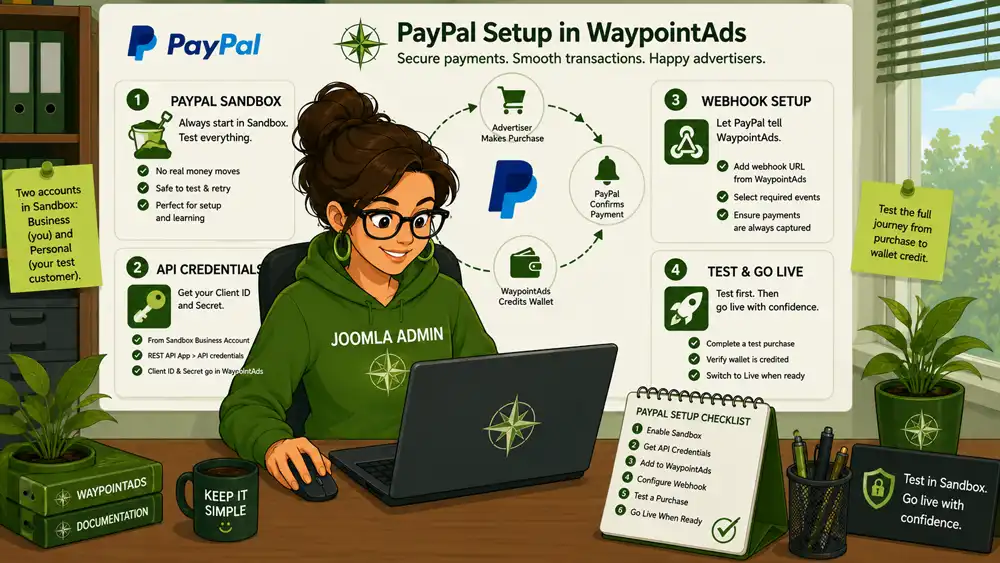
Before accepting real payments through PayPal, the gateway should be configured and thoroughly tested using PayPal Sandbox. This provides a safe environment where you can connect WaypointAds to PayPal, make simulated purchases, and confirm that the entire payment process works without moving real money.
The goal is simple: configure the PayPal Sandbox credentials, connect the required webhook, complete a test purchase, and verify that WaypointAds receives confirmation of the successful transaction before adding the purchased Advertising Credits to the advertiser's Wallet.
Once the complete process has been tested successfully, you can move on to configuring PayPal for Live payments. Until then, stay firmly in the Sandbox. There is little entertainment value in discovering a configuration mistake using real money.
Test First. Sell Second.
Payment gateway configuration is not difficult, but it deserves more care than simply entering a few credentials and hoping for the best.
WaypointAds deliberately separates testing from live payment processing so Administrators have somewhere safe to make mistakes, experiment with transactions, and verify the entire purchasing process.
Use it.
Configure the gateway. Test the webhook. Buy a Package. Check the transaction. Check the Wallet. Try to break something.
Then, when everything behaves exactly as expected, switch to the live gateway and start accepting payments.
There will be plenty of time for excitement once real money is involved.
Preparing PayPal for WaypointAds
Before WaypointAds can accept payments through PayPal, you need to create and configure PayPal Sandbox credentials. The Sandbox allows you to test the complete purchasing process without charging real money or affecting your live PayPal account.
Begin by logging into your PayPal Business account through the PayPal Developer Dashboard. https://developer.paypal.com/dashboard/
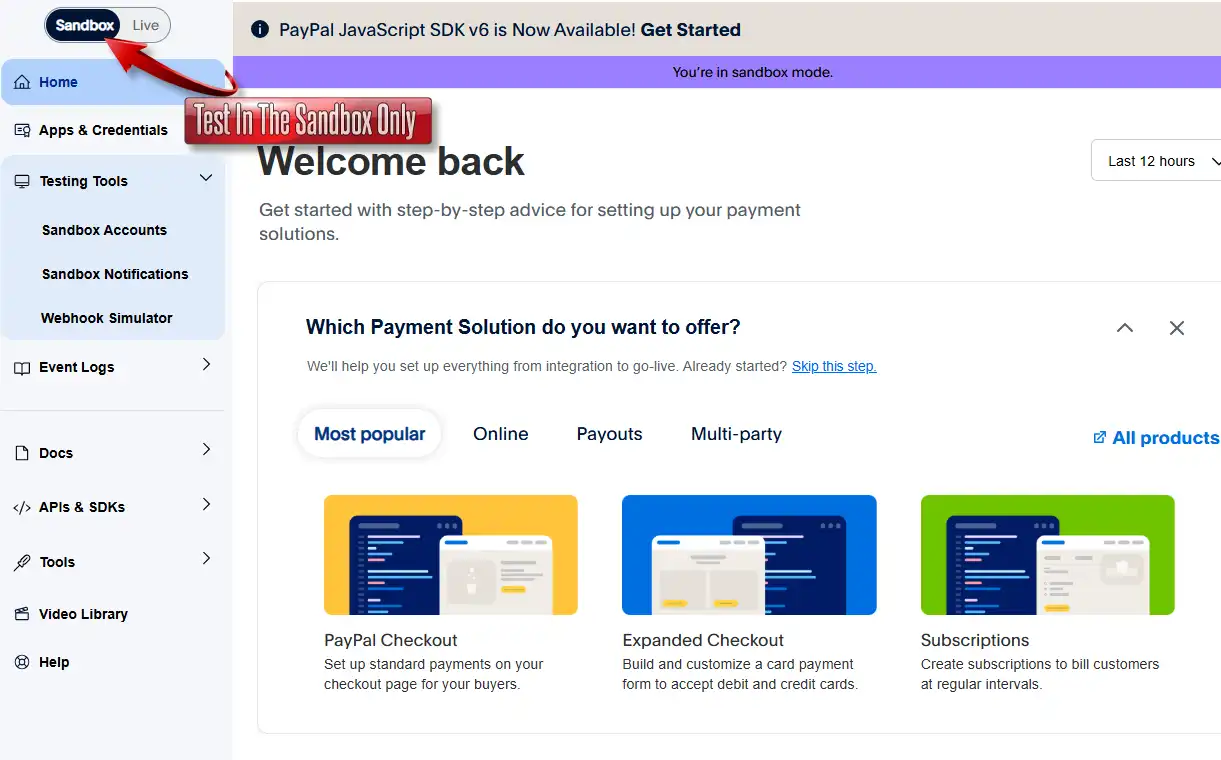
Before continuing, make certain you are working in the PayPal Sandbox environment. We will deal with Live PayPal credentials later, when WaypointAds is ready to accept actual payments. During setup and testing, there is no reason to use the Live environment. A mistake made there could involve real transactions, real payment methods and real money. Testing is much more enjoyable when the money is imaginary.
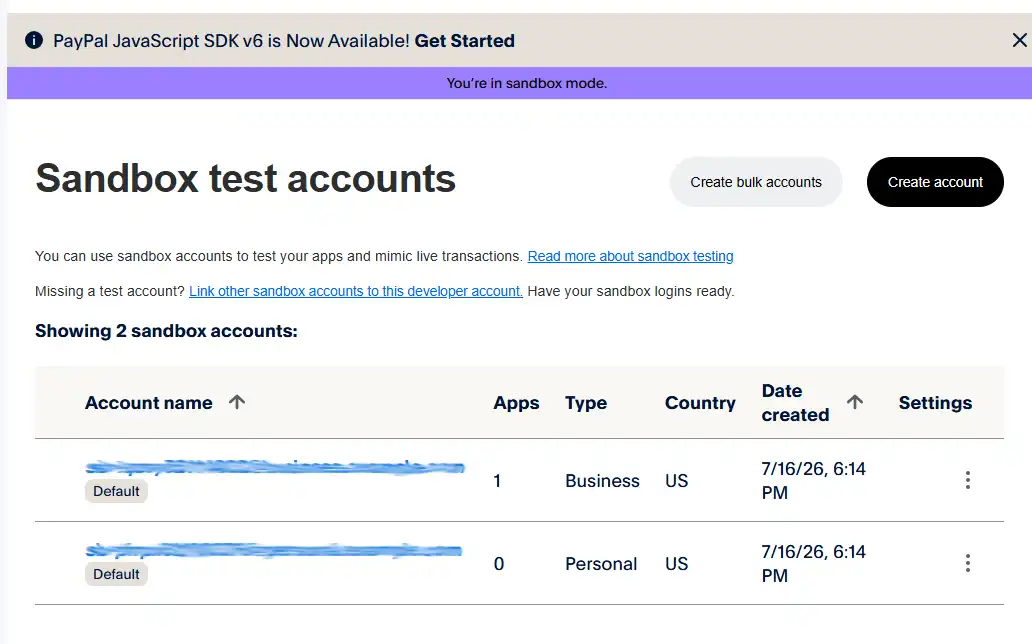
From the menu, select Sandbox Accounts. PayPal provides two Sandbox identities that perform different roles during testing:
Business Account – This represents your business and acts as the seller receiving payments through WaypointAds.
Personal Account – This represents a customer or advertiser purchasing an Advertising Package. You will use this account later when testing purchases through WaypointAds.
These are testing identities only. Transactions between them use simulated funds, so you can experiment freely with the WaypointAds purchasing process without moving real money.
At this stage, do not enter the email address or password from either Sandbox identity into WaypointAds. Those credentials are used to sign into the simulated PayPal accounts. WaypointAds requires a separate Client ID and Client Secret, which we will obtain from the Sandbox application associated with the Business Account.
That distinction is important. The two Sandbox identities represent the people on either side of the transaction; the Client ID and Client Secret allow WaypointAds to communicate securely with PayPal behind the scenes.
Select the Business Sandbox Account
The two Sandbox accounts have different jobs. The Business account represents your WaypointAds business and will receive the simulated payments made during testing. The Personal account represents an advertiser making a purchase. We will use the Personal account later when we test the complete purchasing process.
For now, select the Business Sandbox account. This is the account associated with the PayPal application WaypointAds will use to communicate with PayPal.
Open the Business account and locate its API Credentials. From there, open the associated REST API application. This is where PayPal provides the two Sandbox credentials that WaypointAds needs:
Client ID
Client Secret
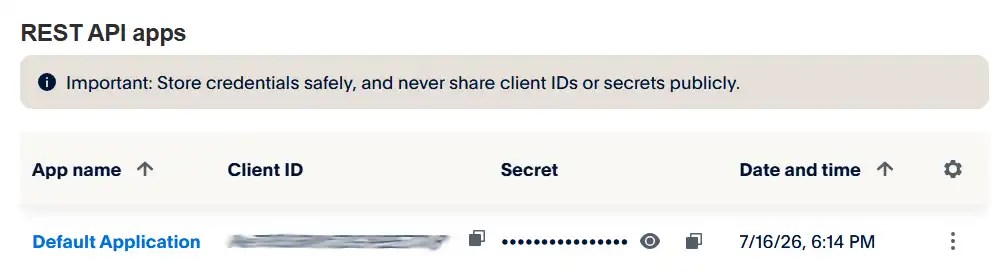
These are not the Business account's email address and password. The Client ID and Client Secret identify and authenticate WaypointAds when it communicates directly with PayPal's Sandbox API.
Keep PayPal in Sandbox mode throughout this process. The Client ID and Client Secret we want at this stage must be Sandbox credentials. Live credentials will be configured separately when you are ready to accept real payments.
Find Your Sandbox API Credentials
Under the Business Sandbox Account, locate the REST API apps section. PayPal normally creates a Default Application, which is perfectly suitable for testing WaypointAds. Select the application to open its details.
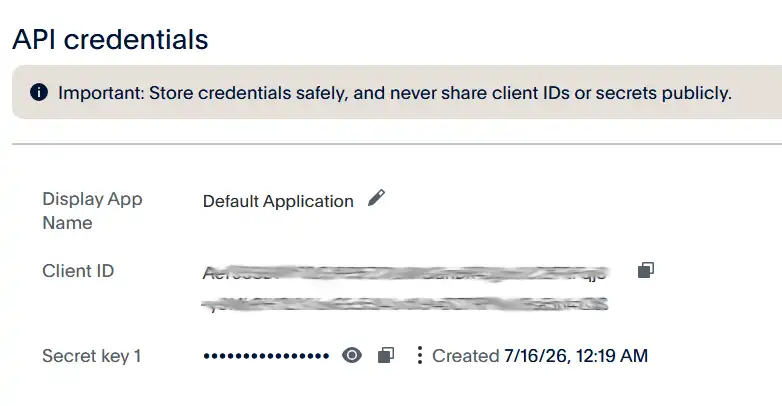
The API Credentials section contains the two values WaypointAds needs to communicate with PayPal:
Client ID – Use the copy button beside the Client ID to copy the complete value.
Secret key – Reveal the Secret if necessary, then use its copy button to copy the complete value.
Treat both credentials as sensitive information, particularly the Secret key. Do not publish them, include them in screenshots, send them by email, or otherwise make them publicly accessible. The screenshots in this tutorial deliberately conceal the actual credential values.
Remember that we are still working entirely in Sandbox mode. These credentials must come from the Sandbox application. Do not substitute credentials from PayPal's Live environment.
Add the Credentials to WaypointAds
In your Joomla Administrator, open:
Components → WaypointAds → Payment Providers
Find the PayPal section and locate PayPal Sandbox Credentials.
Enter the Client ID from your PayPal Sandbox application into the PayPal Sandbox Client ID field. Enter the corresponding Secret key into the PayPal Sandbox Client Secret field, then select Save Sandbox Credentials.
The Client ID and Secret belong together. Make sure both values come from the same PayPal Sandbox application. Mixing a Client ID from one application with a Secret from another will cause PayPal authentication to fail.
Once saved successfully, WaypointAds will report the PayPal Sandbox credentials as Configured. For security, the saved credentials are write-only and are not displayed again. If you later need to change them, enter the replacement credentials and save them again.
Leave the PayPal Live Credentials section empty for now. We are still testing, and there is absolutely no prize for accidentally discovering that the Live payment system works with real money.
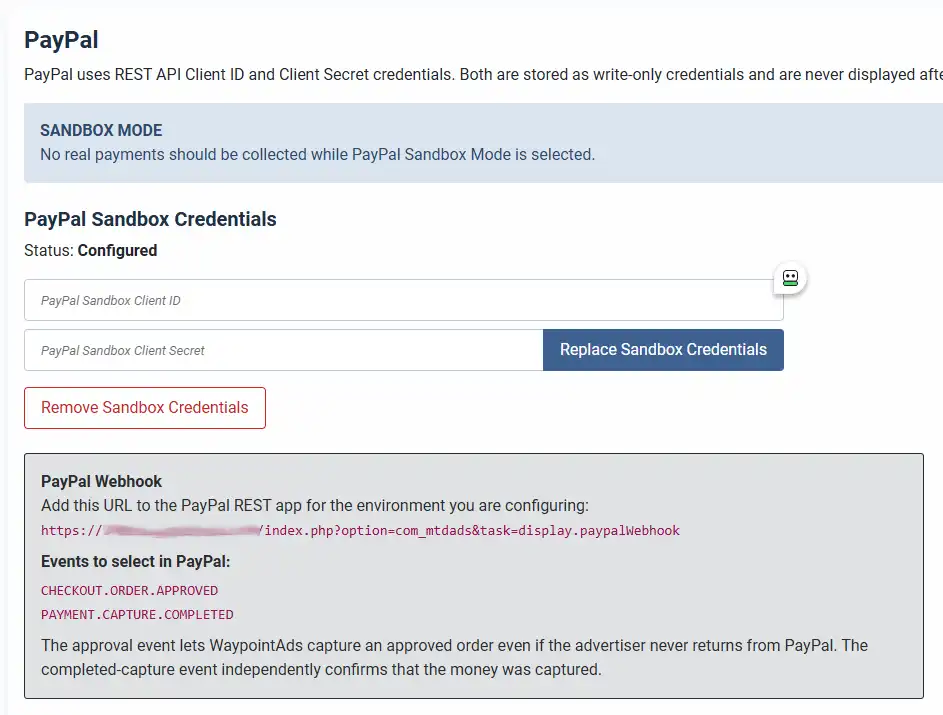
Confirm Your PayPal Sandbox Credentials
After saving the Client ID and Client Secret, WaypointAds should display:
Status: Configured
Notice that the credential fields themselves are empty. This is intentional. PayPal credentials are stored by WaypointAds as write-only credentials and are never displayed again after they have been saved.
If you need to change them later, enter the new Client ID and Client Secret and select Replace Sandbox Credentials. You can also remove the stored Sandbox credentials entirely if necessary.
Do not be concerned that you cannot see what you previously entered. If WaypointAds says Configured, the credentials have been stored.
Configure the PayPal Webhook
There is one more important connection to make between PayPal and WaypointAds: the webhook.
A normal PayPal purchase returns the advertiser to WaypointAds after payment, where the transaction can be confirmed and the purchased Advertising Credits added to the advertiser's Wallet. However, WaypointAds cannot assume that every advertiser will successfully return. They might close the browser, lose their connection or otherwise disappear after PayPal has accepted the payment.
The webhook provides an independent route from PayPal back to WaypointAds. If PayPal completes the transaction but the advertiser never returns normally, PayPal can still notify WaypointAds that the payment occurred.
WaypointAds provides the PayPal Webhook URL directly on the Payment Providers screen. Copy this complete URL exactly as it appears. Your own URL will, of course, use your website rather than the WaypointAds Demo Site shown in this tutorial.
On the Paypal Developers, API Credentials page, slide down to the bottom and locate Sandbox Webhooks. Select the "Add Webhook" button and enter the supplied Webhook URL.
When configuring the webhook in your PayPal Sandbox REST application, WaypointAds requires these two events:
CHECKOUT.ORDER.APPROVED
PAYMENT.CAPTURE.COMPLETED
The first tells WaypointAds that the advertiser approved the PayPal order. The second independently confirms completion of the payment capture.
Using both also gives WaypointAds an important layer of protection. The advertiser's browser and PayPal's webhook may both report the same successful transaction. WaypointAds recognizes that they belong to the same purchase and ensures that the Advertising Credits are awarded once and only once.
