Zones
- Details
Applies To: Core & Commercial
Version: 1.0.x
What Is a Zone?
A Zone defines where and how advertisements can be displayed on your website.
Traditionally, you can think of a Zone as a reserved advertising location. It might appear in a sidebar, below the page header, above the footer, or in another module position provided by your Joomla template.
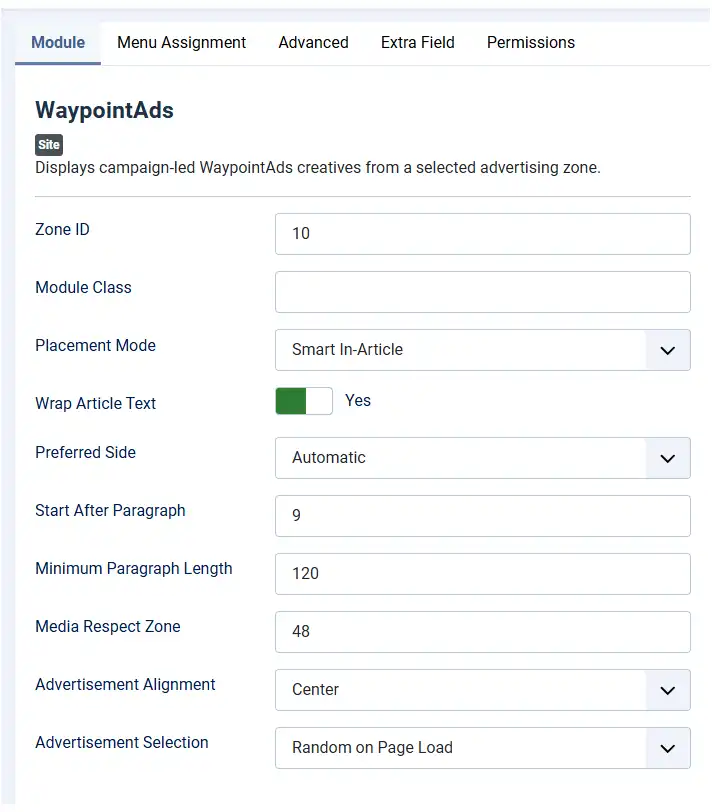
WaypointAds also supports Smart In-Article placement, allowing a Zone to find an appropriate location within an article rather than being restricted to the exact position where its module was originally loaded.
Zones do not contain advertisements themselves. Instead, they define the environment in which eligible Creatives may be displayed. Campaigns connect Creatives with the Zones in which they are allowed to appear.
Why Do I Need a Zone?
Every advertisement needs somewhere to appear, and Zones give the Administrator control over those locations without tying the advertisement itself to the website layout.
A traditional Zone can occupy a predictable location such as a sidebar, header, footer, or article position. A Smart In-Article Zone can take a more flexible approach, examining the article and selecting a suitable location within its content.
This separation means Creatives and Campaigns can be changed without redesigning your pages, while your advertising locations can evolve without recreating the advertisements themselves.
What Information Can Be Stored?
A Zone contains the settings required to control an advertising location. Depending on the type of Zone and the options being used, these can include:
- Zone name
- Display dimensions
- Module position
- Menu assignment
- Display and alignment options
- Styling preferences
- Smart In-Article placement settings
- Administrative notes
Together, these settings determine where advertisements may appear, how they behave within the page, and which Creatives are suitable for that location.
Creating a Zone
Open the Zones manager and select New. Give the Zone a meaningful name, select its dimensions, configure the appropriate display settings, and save it.
WaypointAds creates and manages the Joomla module associated with the Zone. That module can then be assigned to a template module position or loaded where required by your site design.
Once the Zone has been created, it becomes available when creating and managing Campaigns.
Display Sizes
Every Zone has a display size that determines which Creatives are compatible with it.
WaypointAds includes many commonly used advertising dimensions, making it quick to create standard banners, rectangles, sidebars, leaderboards, and other advertising locations.
If your website requires a size that is not included by default, custom dimensions can be added through the WaypointAds Options panel. Once created, those dimensions become available when creating or editing Zones.
Matching Creatives with compatible Zone dimensions helps maintain a professional layout and prevents advertisements designed for one space from being served somewhere they do not belong.
Standard Placement
With standard placement, the WaypointAds module behaves like a conventional Joomla module. Its location is determined by the module position, article placement, or other Joomla mechanism used to render it.
This is ideal when an advertisement must consistently occupy a particular part of the page—for example, a leaderboard beneath the header, a rectangle in a sidebar, or an advertisement near the bottom of an article.
The Advertisement Alignment setting can then control how the advertisement is aligned within the available space.
Smart In-Article Placement
Smart In-Article placement allows WaypointAds to make the final placement decision after the article has been rendered.
Instead of simply displaying the advertisement exactly where the module was loaded, WaypointAds examines the article and searches for an appropriate location farther into its content. Once a suitable location has been identified, the advertising slot is moved there and the Creative is displayed.
This allows advertising to become part of the natural flow of an article without requiring the Administrator to determine the perfect location individually for every page.
Smart placement is particularly useful on websites containing many articles with different lengths, structures, images, and other media.
Wrap Article Text
When Wrap Article Text is enabled, article text can flow alongside the advertisement on screens where sufficient space is available.
This can make rectangular advertisements such as 300 × 250 Creatives feel much more naturally integrated into long-form content rather than creating a full-width interruption in the article.
On smaller screens, where wrapping would leave insufficient room for readable text, Smart placement automatically returns the advertisement to a conventional block layout.
Preferred Side
The Preferred Side setting determines which side of the article the Smart advertisement should use.
You can explicitly select Left or Right, or choose Automatic and allow WaypointAds to make the decision.
Automatic placement considers the available article space and nearby media before selecting a side. If one side would place the advertisement too close to existing editorial media, WaypointAds can use the other side or continue searching for a more suitable location.
This allows the placement to respond to the actual article rather than assuming every page has the same layout.
Start After Paragraph
The Start After Paragraph setting determines how far into an article WaypointAds should begin considering possible advertising locations.
For example, a value of 9 tells Smart placement not to begin its search until the article has reached that depth.
This gives the Administrator control over how much uninterrupted editorial content readers encounter before an in-article advertisement may appear.
It is important to remember that this setting establishes the starting point for the search, not an absolute instruction to place the advertisement immediately after that paragraph. If the location is unsuitable, WaypointAds can continue looking farther through the article.
Minimum Paragraph Length
Not every <p> element represents a meaningful paragraph. Some may contain only a few words, formatting, module instructions, or other incidental content.
The Minimum Paragraph Length setting helps Smart placement identify substantial editorial paragraphs that can reasonably be used when evaluating possible advertising locations.
The default value of 120 characters provides a useful starting point, although Administrators can adjust it to suit the writing style and structure of their website.
Media Respect Zone
Smart placement does more than check whether an image happens to be inside a paragraph. WaypointAds examines the actual displayed location of nearby images, figures, video, tables, and other media before deciding where an advertisement should appear.
The Media Respect Zone specifies additional breathing room, measured in pixels, that WaypointAds should maintain around editorial media when evaluating an advertising position.
For example, the default setting of 48 pixels helps prevent an advertisement from appearing uncomfortably close to a photograph even when the two elements do not technically overlap.
If a proposed location conflicts with the media respect area, Smart placement can try another side or continue farther through the article looking for a better location.
Advertisement Alignment
Advertisement Alignment controls the alignment of the Creative when conventional alignment is applicable.
For standard Zones, this provides familiar Left, Center, or Right positioning within the available module area.
Smart In-Article Zones use their Smart placement settings when determining their position within article content, while the normal alignment setting remains available for situations in which the advertisement is rendered conventionally.
Advertisement Selection
When more than one eligible Creative can appear in a Zone, Advertisement Selection determines how WaypointAds chooses among them.
For example, Random on Page Load allows different eligible advertisements to be selected as visitors load the page, while Campaign eligibility, scheduling, targeting, priority, and other WaypointAds rules continue to determine which Creatives may participate.
Smart placement changes where the resulting advertisement is displayed. It does not bypass the normal WaypointAds Campaign and Creative selection system.
Smart Placement and Mobile Devices
Smart In-Article placement is responsive.
On larger screens, there may be sufficient horizontal space for an advertisement to sit beside article text. On phones and other narrow displays, attempting the same arrangement could leave the article text cramped or unreadable.
WaypointAds therefore adapts the placement as the available width changes. When necessary, the advertisement returns to a normal block arrangement so that both the advertisement and article remain usable.
Administrators do not need to create separate Smart placement instructions merely to accommodate smaller screens.
Using Advertising Code in a Smart Zone
Smart In-Article placement is not limited to uploaded image Creatives.
Eligible advertising code can also be displayed through the Zone, allowing third-party advertising systems such as Google AdSense to take advantage of Smart placement.
WaypointAds determines an appropriate article location while the third-party advertising system remains responsible for rendering the advertisement itself.
Because third-party advertisements may vary in their rendered content, Smart placement evaluates the space available on the actual page rather than relying entirely upon assumptions about the surrounding article.
Managing Zones
Zones can be updated as your website changes.
You may create additional advertising locations, reorganize existing Zones, alter display behavior, or adjust Smart placement settings without rebuilding your Campaigns and Creatives.
For Smart Zones in particular, settings such as paragraph depth, preferred side, minimum paragraph length, and media clearance can be adjusted as you learn what works best with the structure of your site's articles.
Deleting a Zone
Before deleting a Zone, ensure that it is no longer required by active Campaigns.
Removing a Zone removes an advertising destination. WaypointAds protects the relationships between Zones, Campaigns, and Creatives so that an Administrator does not inadvertently dismantle an active advertising configuration without warning.
If a Zone is still associated with Campaigns, resolve those relationships before permanently removing it.
Best Practices
Well-planned Zones make advertising easier to manage and help advertisements become a deliberate part of your website rather than an afterthought.
Use clear and descriptive Zone names, choose dimensions appropriate to the available space, and use separate Zones when advertising locations have substantially different purposes. For Smart In-Article Zones, begin with conservative placement settings and test them against a variety of real articles—not merely one ideal page.
Pay particular attention to articles containing large photographs, multiple images, tables, embedded media, unusually short paragraphs, and different screen widths. Smart placement is designed to adapt to varying content, but each website has its own editorial structure.
And when using Automatic placement, give WaypointAds enough freedom to do its job. The purpose of Smart placement is not simply to put an advertisement after a numbered paragraph—it is to begin looking at an appropriate point and find somewhere the advertisement can live comfortably.
Bringing It All Together
Every advertisement displayed by WaypointAds still follows the same fundamental path:
Advertiser → Campaign → Creative → Zone
The Advertiser owns the Campaign. The Campaign determines what advertising is running and under what conditions. Creatives provide the actual advertising material. Zones determine where those Creatives are allowed to appear.
What has changed is that “where” no longer has to mean one rigid location.
With Smart In-Article placement, a Zone can examine the article it has been given, consider its structure and surrounding media, and choose an appropriate location for itself.
That makes Zones not merely places where WaypointAds advertisements appear, but increasingly the part of WaypointAds that understands how advertising should fit into the website around it.

WaypointAds is a modern advertising solution for Joomla that makes it easy to create campaigns, manage advertisers, organize creatives, and display ads across your website. Built for simplicity, flexibility, and growth, it gives you the tools to keep your advertising running smoothly from a single, intuitive interface.
