Adding Your First Creative
- Details
Your Creative is the advertisement itself. Whether it's an image, HTML advertisement, or affiliate code, every Creative belongs to a Campaign and is displayed within one or more compatible Advertising Zones.
Because WaypointAds knows the size of every Zone, it can verify that image advertisements are the correct dimensions before they're accepted. This helps prevent stretched, cropped, or incorrectly sized advertisements from ever reaching your website.
If you completed the Learning Setup, you'll already see two example Creatives listed at the bottom of the page. These examples demonstrate how completed advertisements appear and can be edited or removed whenever you no longer need them.
Now let's create your first Creative.
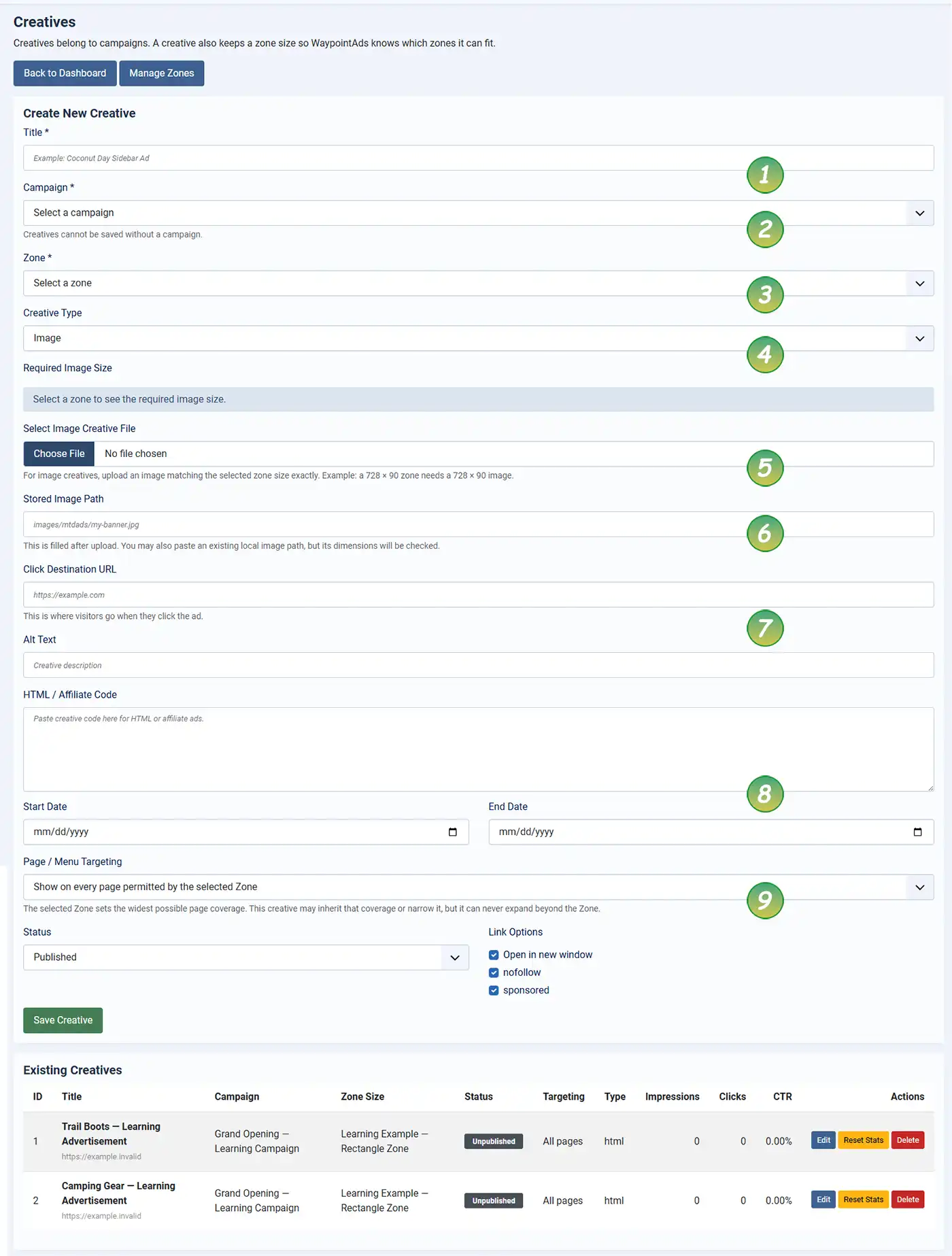
Complete the fields using the numbered guide.
1. Title
Give your Creative a descriptive name.
Examples include:
- Summer Sale Banner
- Sidebar Promotion
- Homepage Leaderboard
- Holiday Special
Choose a name that makes it easy to identify the advertisement later.
2. Campaign
Select the Campaign that will own this Creative.
Every Creative belongs to exactly one Campaign. If no Campaign has been created yet, you'll need to create one before continuing.
3. Zone
Select the Advertising Zone where this Creative will appear.
The selected Zone determines the required image size and ensures that only compatible advertisements can be assigned.
4. Creative Type
Choose the type of advertisement you wish to create.
WayPointAds supports several advertising formats including:
- Image advertisements
- HTML advertisements
- Affiliate advertisements
The fields displayed below will adjust automatically depending on the type you choose.
5. Image File
For image advertisements, upload your main banner here.
WayPointAds automatically checks the dimensions of every uploaded image against the selected Zone. If the image size does not match the Zone dimensions exactly, the upload is rejected before the Creative can be saved.
You can also upload an additional image for smaller screens, allowing the Creative to use a more suitable banner when the available display space is reduced. This is particularly useful when the main advertisement is designed for a wide desktop position but would be too large or difficult to read on a phone.
By validating image dimensions and providing an appropriate alternative for smaller displays, WayPointAds helps prevent common advertising display problems while keeping Creatives effective across different screen sizes.
6. Stored Image Path
After the upload completes successfully, WaypointAds records the image location automatically.
Advanced users may also enter an existing local image path, although WaypointAds will still verify that the image dimensions match the selected Zone.
7. Click Destination and Alt Text
Enter the destination URL visitors should be taken to when they click the advertisement.
You should also provide descriptive Alt Text for accessibility, screen readers, and improved search engine indexing.
8. HTML / Affiliate Code and Scheduling
If you're creating an HTML or Affiliate advertisement, paste the supplied code into the editor.
You may also specify optional Start and End Dates to automatically schedule when the Creative becomes active.
Leaving both dates blank allows the Creative to remain available indefinitely.
9. Page Targeting
Choose where this Creative may appear.
By default, the Creative inherits the page coverage of its assigned Zone.
You may further restrict the advertisement to specific pages or menu items, but it can never appear outside the coverage defined by the Zone itself.
This layered approach gives you precise control while preventing accidental placement in unintended locations.
Link Options
WaypointAds also provides several useful link options.
Open in new window opens the advertiser's website in a new browser tab.
nofollow tells search engines not to pass ranking authority through the advertising link.
Sponsored identifies the link as paid or sponsored content, helping comply with modern search engine recommendations.
For most advertising campaigns, enabling both nofollow and sponsored is considered best practice.
Saving Your Creative
When you're happy with the Creative, click Save Creative.
The advertisement immediately becomes available to its Campaign and, if all Campaign and Zone requirements have been met, can begin appearing on your website.
 |
How WaypointAds Works |

WaypointAds is a modern advertising solution for Joomla that makes it easy to create campaigns, manage advertisers, organize creatives, and display ads across your website. Built for simplicity, flexibility, and growth, it gives you the tools to keep your advertising running smoothly from a single, intuitive interface.
