Creating Additional Zones
- Details
You've already created your first Advertising Zone, so there is no need to learn the process all over again. Creating additional Zones uses exactly the same controls and follows the same procedure.
The difference now is that you're beginning to design an advertising layout for your website rather than simply learning how WaypointAds works.
A Zone represents a place where advertisements can appear. You might create a wide Leaderboard Zone near the top of your pages, a Rectangle Zone in a sidebar, another beneath article content, or different Zones for particular sections of your website.
There is no requirement to fill your website with advertising spaces. Create the Zones that make sense for your site and the advertising you intend to offer.
 Creating Another Zone
Return to Advertising Zones from the WaypointAds Dashboard.
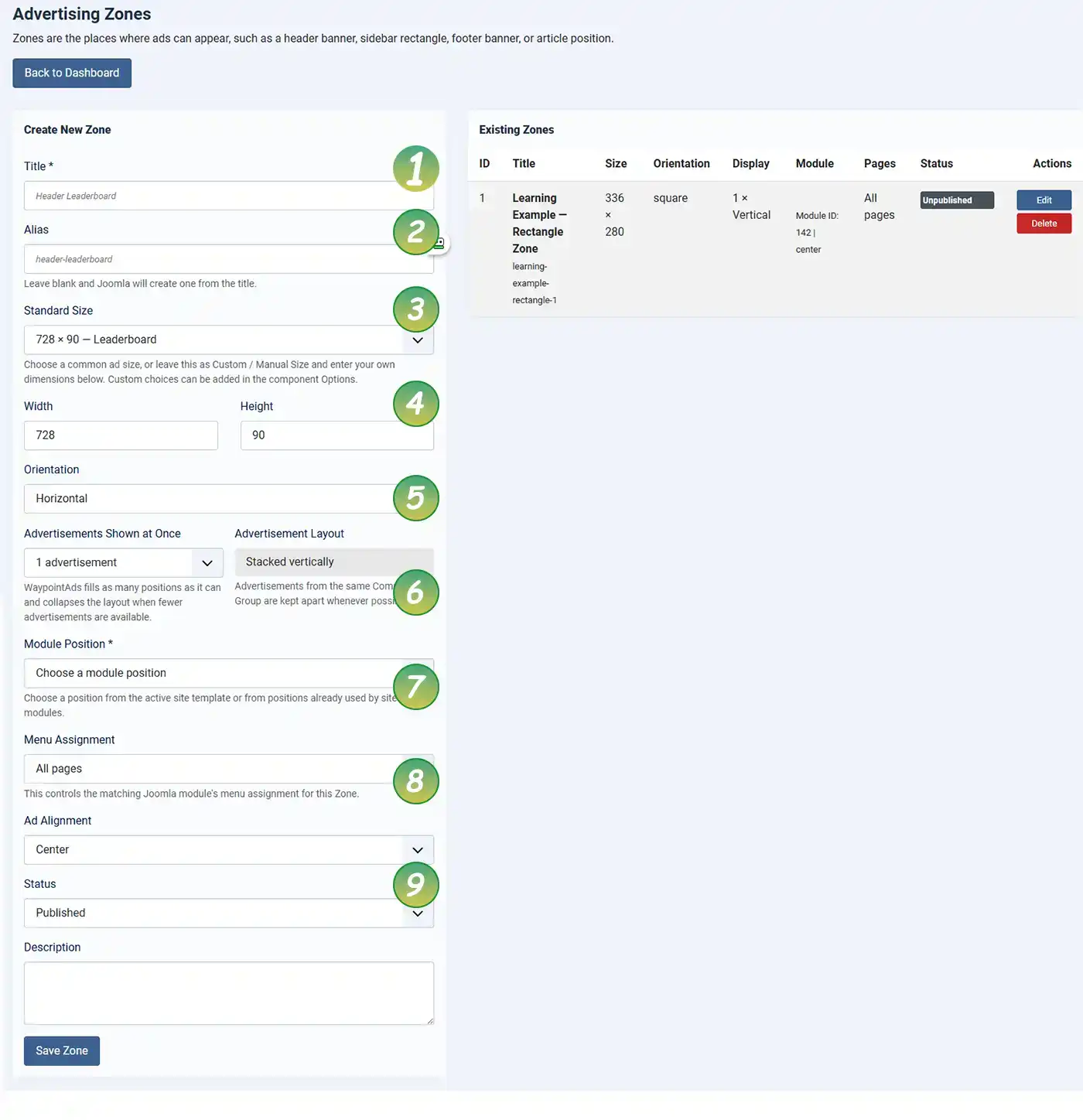
The form on the left is the same one you used when creating your first Zone. Give the new Zone a descriptive Title, select its size and orientation, choose the appropriate Joomla module position, decide where it should appear using Menu Assignment, and set its Status.
The numbered image above provides a quick reminder of the controls:
- Title: Give the Zone a name that identifies its location or purpose.
- Alias: Usually leave this blank and allow Joomla to create it automatically.
- Standard Size: Select the advertising size you want to use or choose a custom size.
- Width and Height: These are supplied automatically for standard sizes or can be entered manually for a custom Zone.
- Orientation: Identify the Zone as Horizontal, Vertical, or Square.
- Advertisements Shown at Once / Advertisement Layout: Decide how many advertisements may appear in the Zone at the same time and, when appropriate, how they should be arranged.
- Module Position: Choose where your Joomla template will display the Zone.
- Menu Assignment: Decide which pages of your website can display it.
- Status: Publish the Zone when it is ready for use.
Add an optional Description if it will help you remember the purpose of the Zone, then select Save Zone.
WaypointAds creates and manages the Joomla module needed to display it.
Creating Custom Zone Sizes
WaypointAds includes a collection of standard advertising sizes, but your website is not required to design its advertising around them.
If you need an advertising size that is not included in the standard list, open WaypointAds Options and enter Custom Sizes. Enter one preset per line using Label|Width|Height, for example: Homepage Hero|1400|300.
Once Custom Sizes are entered, return to Advertising Zones and select the custom option from the Standard Size field. You can then enter the Width and Height required for that Zone.
This can be particularly useful when your Joomla template has an advertising position with dimensions that do not match a conventional banner size, or when you want to create an advertising format specifically for your website.
There is one important consideration: a custom Zone establishes its own Creative dimensions just as firmly as a standard Zone does. If you create a Zone that is 500 × 200 pixels, the Creatives intended for that Zone should be created at 500 × 200 pixels as well. WaypointAds uses those dimensions when checking whether Creatives and advertising spaces are compatible.
Custom sizes give you flexibility, but standard advertising dimensions are often easier for advertisers to recognize and prepare artwork for. Use a custom size when it serves a purpose rather than simply because the option is available.
Give Your Zones Useful Names
Once you have several Zones, sensible naming becomes increasingly important.
Names such as Zone 1, Advertising, and Banner may seem perfectly adequate when there are only two Zones on the screen. Six months later, when there are twelve of them, those names become considerably less helpful.
Names such as Homepage Leaderboard, Article Footer Banner, and Right Sidebar Rectangle tell you immediately what each Zone was created to do.
A little organization now can save a surprising amount of head scratching later.
Different Pages Can Have Different Advertising
Additional Zones don't necessarily have to appear everywhere.
Using Menu Assignment, you can create advertising spaces intended for particular areas of your website. A Zone might appear only on the Home page, throughout an article section, or on a selected collection of pages.
This gives you considerable flexibility when planning your advertising without requiring you to manually place and maintain separate advertising modules. WaypointAds manages its Zone modules while Joomla continues to control where those modules appear.
Remember Module Ordering
If several Joomla modules share the same module position, Joomla controls their order.
For example, if a WaypointAds Zone shares a sidebar position with a login module and a Custom HTML module, use Joomla's Module Manager when you want to change which appears first.
WaypointAds deliberately leaves that job to Joomla rather than trying to override your site's normal module ordering.
Build the Advertising Layout You Need
You can create as many additional Zones as your website requires. They can use different dimensions, module positions, page assignments, orientations, and display arrangements.
You don't need to create them all at once, either. Start with the advertising positions you actually intend to use. Additional Zones can always be created later as your advertising needs grow.
And remember something you saw while creating and testing your first advertisement: the dimensions of a Zone matter. WaypointAds uses them to help prevent a Creative intended for one advertising size from accidentally being placed into an incompatible space.
Once your additional Zones are saved and published, they're ready for Campaigns and Creatives just like the first one.
Your first Zone taught you how WaypointAds works. Your additional Zones are where you begin making WaypointAds work for your website.

WaypointAds is a modern advertising solution for Joomla that makes it easy to create campaigns, manage advertisers, organize creatives, and display ads across your website. Built for simplicity, flexibility, and growth, it gives you the tools to keep your advertising running smoothly from a single, intuitive interface.
