Removing Creatives
- Details
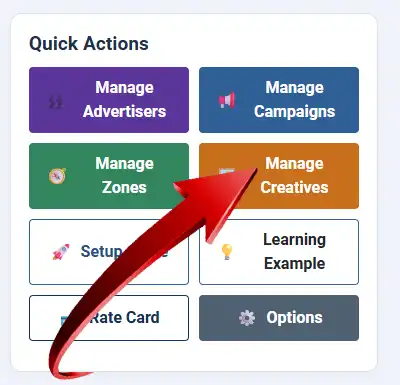
Once again we will begin at the Quick Actions Panel on the WaypointAds Dashboard. Select Manage Creatives and WaypointAds will take you to the Creatives area, where you can see and manage the advertisements that have been created for your website.
The Existing Creatives table gives you a useful overview of each Creative without requiring you to open them individually. You can see the Creative title and ID, the Campaign it belongs to, the Zone and advertisement size, its current status, targeting, Creative type, and the statistics it has collected. Impressions, clicks, and the calculated click-through rate (CTR) are displayed directly in the list.
The Status column provides a quick indication of whether each Creative is ready to do its job. A Healthy Creative is properly configured and available to display according to its Campaign and Zone settings. Other statuses can alert you when a Creative is unpublished or when something about its configuration needs attention.
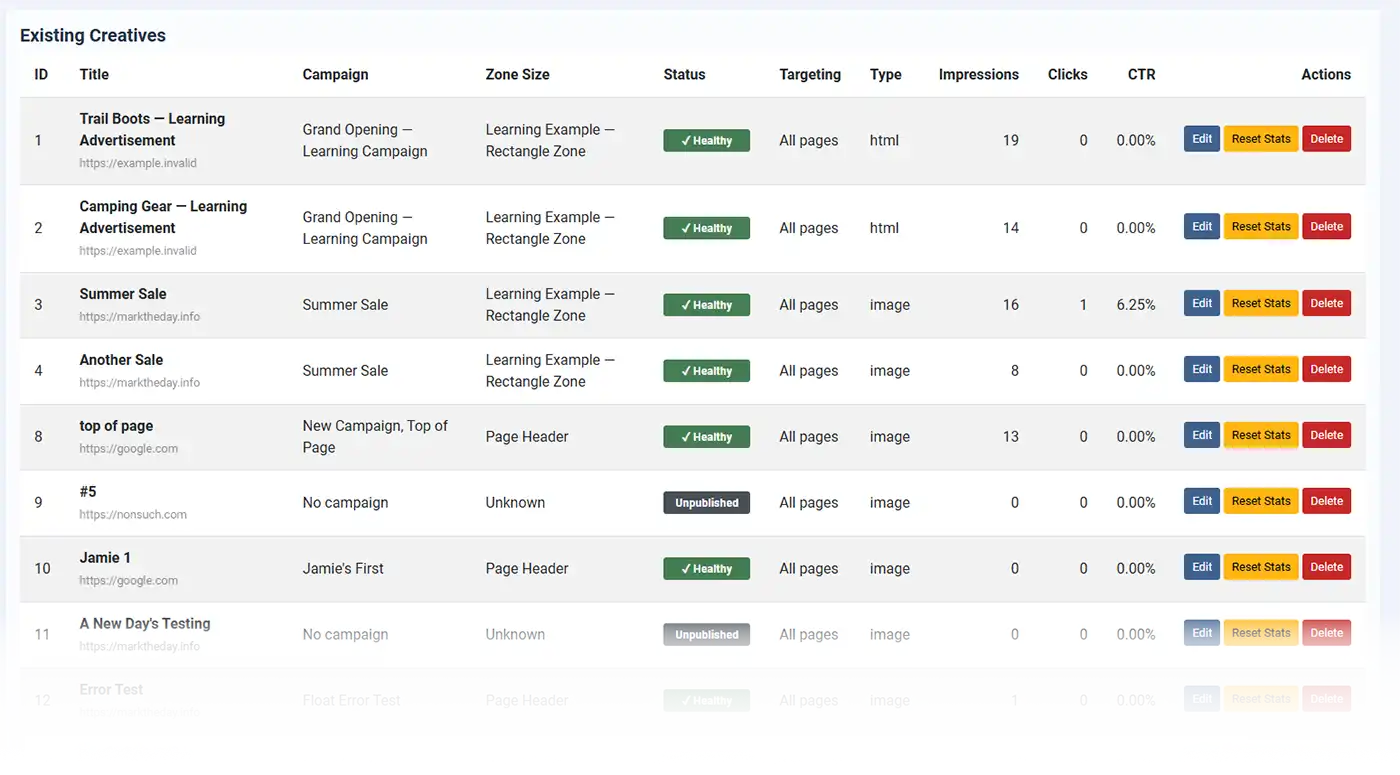
The Campaign column is particularly useful when you have several advertisements running. It shows which Campaign is using each Creative. A Creative that has not yet been assigned will be identified as having No campaign, making unused advertisements easy to spot.
Similarly, the Zone Size column tells you where the Creative belongs and the dimensions associated with that Zone. This becomes increasingly useful as your advertising system grows. Instead of trying to remember whether an advertisement was intended for a Page Header, sidebar, rectangle, or another location, WaypointAds keeps that relationship visible.
On the right side of each Creative are its management controls. Edit allows you to open the Creative and change its settings. Reset Stats clears the accumulated impression and click statistics for that Creative, while Delete removes it. As always, deleting something deserves a moment's thought; computers are remarkably obedient when you tell them to throw something away.
The statistics shown here also provide a quick indication of how individual advertisements are performing. Impressions tell you how many times the Creative has been displayed, Clicks record visitor interaction with it, and CTR shows the percentage of impressions that resulted in a click. We will look more closely at statistics elsewhere in the tutorial, but having them available here makes the Creatives screen useful for both management and a quick performance check.
You may eventually have many Creatives spread across several Campaigns and Zones. That is when this screen becomes particularly valuable. Rather than hunting through individual Campaigns to discover which advertisements are being used where, Manage Creatives gives the Administrator one central place to see what exists, where it belongs, how it is doing, and what may need attention.
For now, spend a little time looking through the Creatives created during our Learning Example. There is nothing you need to change. The important thing is knowing that when you need to find or manage an advertisement later, Quick Actions → Manage Creatives is where to begin.

WaypointAds is a modern advertising solution for Joomla that makes it easy to create campaigns, manage advertisers, organize creatives, and display ads across your website. Built for simplicity, flexibility, and growth, it gives you the tools to keep your advertising running smoothly from a single, intuitive interface.
