Managing Campaigns
- Details
Once you have several Campaigns running, you'll spend less time creating them and more time keeping an eye on them. The Campaigns screen gives you a convenient place to see what is running, what is paused, where each Campaign is appearing, and how it is performing.
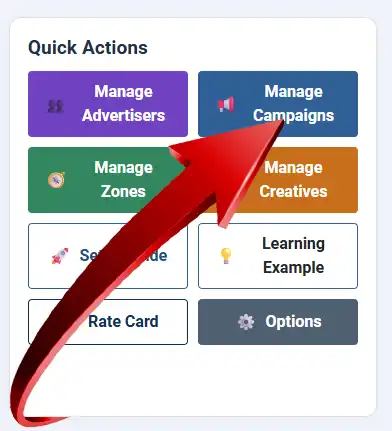
How to Get There
From the WaypointAds Dashboard, select Manage Campaigns from Quick Actions panel.
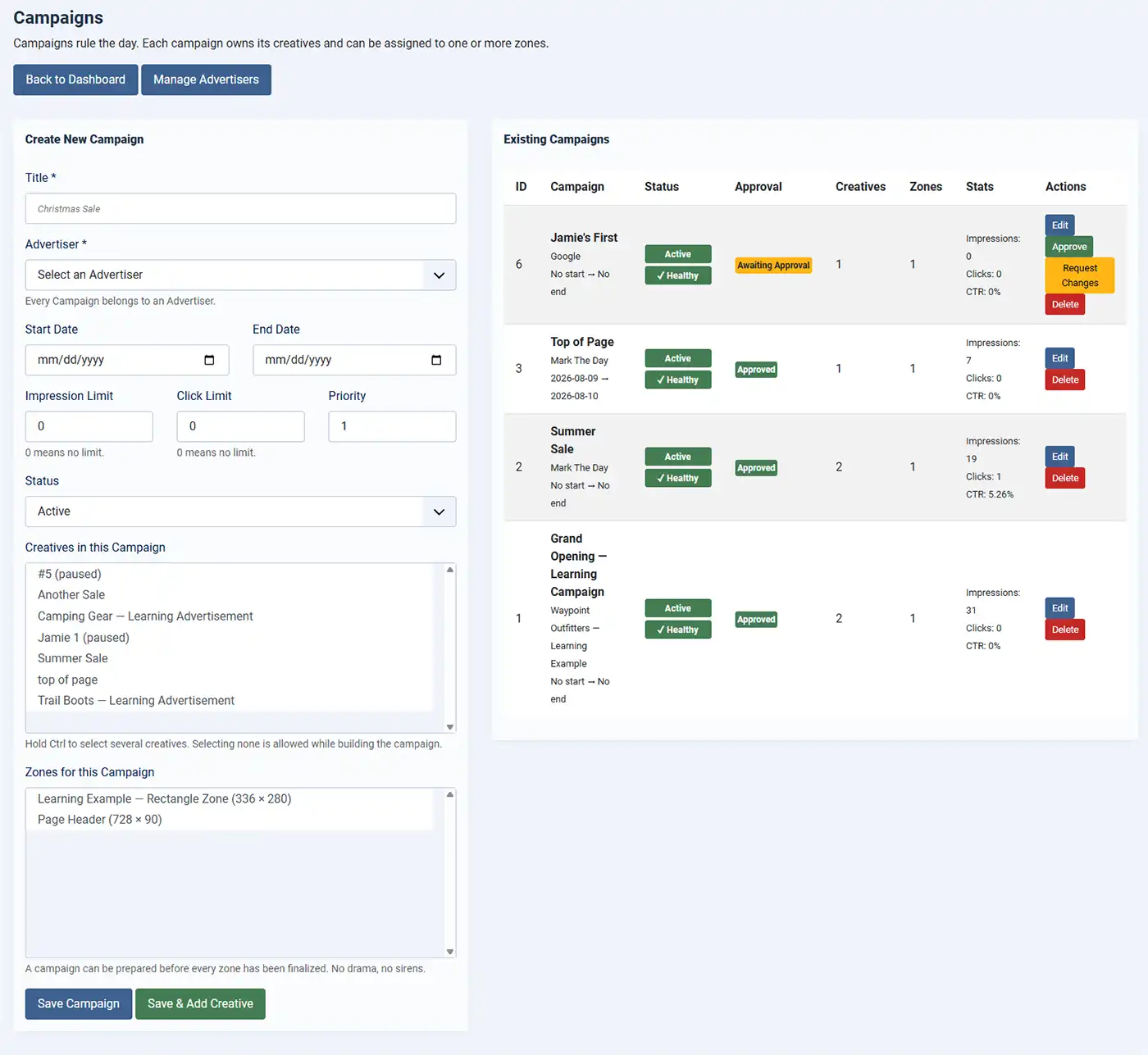
Your existing Campaigns appear on the right side of the Campaigns screen. The Campaign editor remains available on the left whenever you need to create a new Campaign or change an existing one.
 Understanding the Campaign List
Each Campaign is displayed with the information you are most likely to need when managing your advertising. The Campaign title identifies the Campaign, while the Advertiser tells you who owns it.
The Status shows whether the Campaign is currently Active or Paused. WaypointAds also provides a health indicator so you can quickly spot whether a Campaign is ready to operate normally or whether something requires attention.
The Approval indicator shows the Campaign's approval state where applicable.
You can also see how many Creatives and Zones are associated with the Campaign, together with its current advertising results, including Impressions, Clicks, and CTR. This gives you a useful overview without having to open every Campaign individually.
Editing a Campaign
Select Edit beside a Campaign when you need to make changes. The Campaign will open in the editor on the left side of the screen, where you can change its details, dates, status, assigned Creatives, or Zones.
When you've finished, select Save Campaign.
If you're working on the Campaign and want to create another Creative for it immediately, Save & Add Creative lets you save your changes and continue directly to the Creative workflow.
Active and Paused Campaigns
An Active Campaign is eligible to display advertisements when its other requirements are satisfied.
A Paused Campaign remains in WaypointAds but does not participate in normal advertising rotation. This is useful when you temporarily want to stop a Campaign without deleting it or dismantling its configuration.
Pausing is often the better choice when there is a reasonable chance you'll use the Campaign again.
Campaign Health
The health indicator provides a quick way to see whether a Campaign has what it needs to operate correctly.
A healthy Campaign has the necessary relationships between its Campaign, Zones, and Creatives. If something is missing or prevents the Campaign from operating normally, WaypointAds will bring that condition to your attention.
This becomes particularly useful as your advertising system grows. Checking one status indicator is considerably easier than opening a Campaign and inspecting every setting simply to make sure everything is still connected properly.
Creatives and Zones
When editing a Campaign, you can change which Creatives belong to it and which Zones it can use.
Remember that Zones have specific dimensions. A Creative intended for one advertising size cannot simply be squeezed into an incompatible Zone. WaypointAds checks these relationships to help prevent incorrectly sized advertisements from appearing where they don't belong.
A Campaign can also use more than one suitable Zone when your advertising arrangement calls for it.
Watching Performance
The Campaign list isn't just for configuration. It also provides a quick look at how your Campaigns are performing.
Impressions show how often advertisements from the Campaign have been displayed, Clicks show recorded visitor interactions, and CTR provides the relationship between the two.
You learned more about these figures in Reading Statistics, but having them directly alongside your Campaigns makes it easy to spot activity while performing everyday administration.
Deleting a Campaign
The Delete button permanently removes a Campaign, so use it when the Campaign is genuinely no longer required. If Creatives are attached to the Campaign, deletion is not possible. If you simply want advertising to stop temporarily, Pause it instead. Keeping the Campaign preserves its configuration and makes returning to it much easier.
WaypointAds also includes safeguards intended to prevent important advertising relationships from disappearing without warning.
Keeping Campaigns Under Control
As your advertising grows, this screen becomes one of the places you'll visit most often. It provides a straightforward overview of what is running and gives you direct access when something needs changing. You don't need to constantly fiddle with Campaigns that are working properly. Healthy, active Campaigns can be left to do their jobs while you concentrate on the ones that actually need your attention.
That's rather the point of good administration: manage the exceptions and let the machinery handle the routine.

WaypointAds is a modern advertising solution for Joomla that makes it easy to create campaigns, manage advertisers, organize creatives, and display ads across your website. Built for simplicity, flexibility, and growth, it gives you the tools to keep your advertising running smoothly from a single, intuitive interface.
